
Elementor Hamburger Menu Not Working: A JavaScript Console Error Case Study
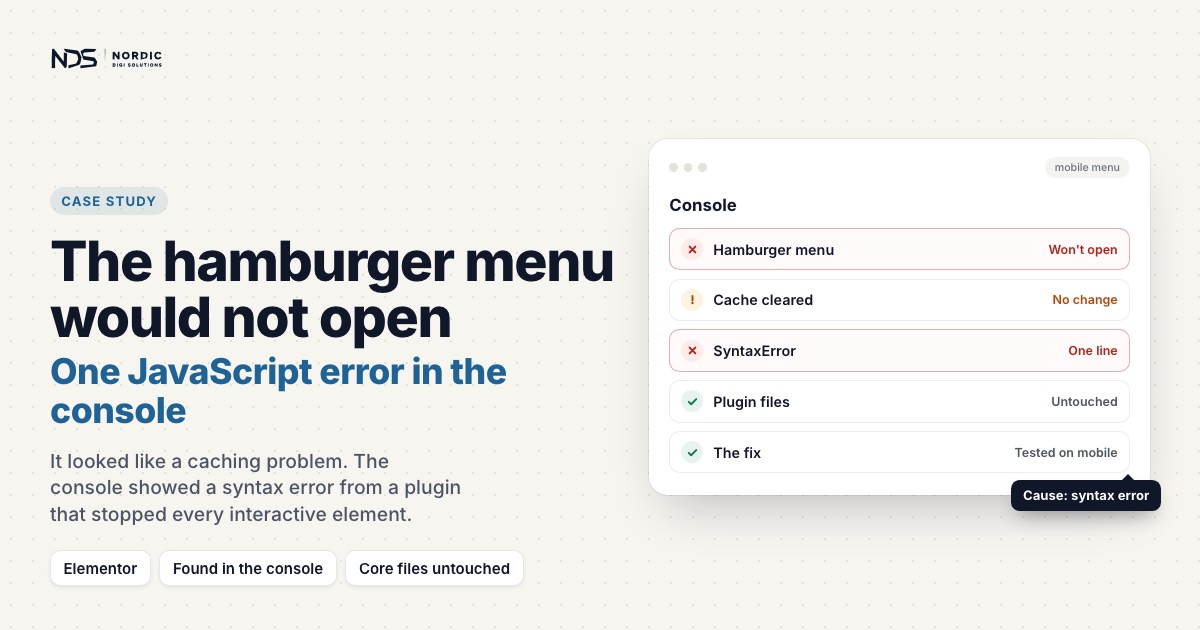
A broken hamburger menu is a real usability problem on mobile. The navigation is visible, the user taps it, and nothing happens. This client’s WordPress site had exactly that issue. At first it looked like a typical Elementor or caching glitch, but the browser console told a different story. A single JavaScript syntax error from an unrelated plugin was quietly breaking every interactive element on the page.
Project overview
Platform: WordPress and Elementor, with several Elementor-related plugins, ElementsKit among them.
Problem: On mobile, the hamburger menu was visible but would not open.
Root cause: One line of plugin output. A URL was printed into an inline script without quotation marks, and the browser stopped at it with a syntax error.
Approach: Browser console first, page source second, and a fix that leaves plugin core files alone.
The problem
The site was built on WordPress and Elementor with several Elementor-related plugins. On mobile, the hamburger menu would not open. That symptom can come from a number of unrelated causes, which is part of what makes it tricky to diagnose:
- Plugin conflict
- JavaScript error
- Cache or minification issue
- Elementor asset loading problem
- Theme compatibility issue
- Mixed content or blocked resources
The browser console showed a mix of warnings and errors at first. After we disabled Google Fonts and cleared up some loading noise, one error remained, and it was the important one:
Uncaught SyntaxError: unexpected token: ':'This matters because a JavaScript syntax error does not stay contained. It can stop other interactive parts of the page from running. Mobile menus, sliders, popups, tabs, and Elementor widgets all depend on JavaScript executing cleanly.
The main finding
Checking the page source pointed straight at the line causing the trouble:
<script type="text/javascript">
var elementskit_module_parallax_url = https://example.com/wp-content/plugins/elementskit/modules/parallax/;
</script>
The URL was printed directly, with no quotation marks around it. In JavaScript, a URL has to be stored as a string. Without quotes, the browser reads https: as invalid syntax, and that is what creates the console error.
The correct output should look like this:
<script type="text/javascript">
var elementskit_module_parallax_url = "https://example.com/wp-content/plugins/elementskit/modules/parallax/";
</script>
Why this broke the hamburger menu
The hamburger menu relies on JavaScript to open and close the mobile navigation. When the browser hits a syntax error, it can stop executing the current script and affect scripts that load after it. So even though the menu was designed and laid out correctly, the click handler never ran. The JavaScript environment was already broken before it got there.
Menu widgets in Elementor are built this way. Elementor’s own Nav Menu widget, for example, has a setting for the breakpoint where its mobile dropdown takes over, on mobile or on tablet, and an option to show the hamburger icon as the toggle button that opens it. The builder places the button. JavaScript does the opening and closing when someone taps it.
Two details explain how far one bad line can reach. A browser parses a script before it runs any of it, so a script that fails to parse never runs at all: the HTML standard’s steps for running a script report the error instead of executing the code. That is why the variable on that line was never created. And any code that later reads a variable that doesn’t exist stops at that point with a ReferenceError. Where a cache or minification plugin has merged several scripts into one file, a single syntax error stops the whole merged file.
This is why a visual builder like Elementor can show a perfect layout while the live site has broken functionality. The design and the runtime are two different things.
Debugging approach
We worked through the issue in order, from symptom to root cause:
- Reproduced the mobile menu behaviour.
- Opened the browser console to identify JavaScript errors.
- Disabled Google Fonts and mixed-content issues to reduce noise.
- Isolated the remaining JavaScript syntax error.
- Checked the page source to locate the incorrect script output.
- Identified the plugin variable causing the problem.
- Planned a safe fix without editing plugin core files.
Recommended fix
The safest fix is not to edit the plugin files directly. A plugin update will overwrite the change and the bug comes straight back. Instead, we check the layers that can produce or correct the bad output:
- Whether Elementor and ElementsKit are fully updated.
- Whether the issue is coming from a plugin setting.
- Whether a cache or minification plugin is altering the script output.
- Whether a custom snippet or theme function is printing the URL incorrectly.
- Whether the feature behind it, parallax in this case, can simply be disabled if it is not used.
If a patch is still needed, it goes into a child theme or a small custom functionality plugin, never the plugin core.
Result
Once the invalid JavaScript output is corrected, the fix is tested across mobile, tablet, and desktop. The expected outcome:
- ✅ Hamburger menu opens correctly
- ✅ Console syntax error is gone
- ✅ Elementor widgets work normally
- ✅ No plugin core file edited directly
- ✅ Site stays safe for future updates
What to check on your own site
These are the same steps we took here, in a form you can run yourself before anyone edits a file.
- Open the console first. In Chrome,
Ctrl+Shift+Jon Windows and Linux orCmd+Option+Jon a Mac opens DevTools straight on the Console. Reload the page, tap the broken menu, and look for red errors. - Clear the noise. The Log Levels drop-down can hide everything except errors. In this case the font and mixed-content messages were noise, and the one syntax error left behind was the cause.
- Keep the log across page loads. By default the Console clears every time a new page loads. Turn on Preserve Log in the Console settings if the error appears and disappears as you click around.
- Read the error, then the source. A SyntaxError means a whole script never ran. Search the page source for the variable or URL near the error. Here the variable name,
elementskit_module_parallax_url, pointed straight at the plugin that printed it. - Change one layer at a time. Update, check the plugin’s settings, and test with caching and minification off before deciding a patch is needed. If one is, it goes in a child theme or a small functionality plugin, so the next update doesn’t undo it.
Key lesson
A broken Elementor hamburger menu often has nothing to do with the menu widget itself. One small JavaScript syntax error from an unrelated plugin can take down every interactive element on the page. Checking the browser console first is one of the fastest ways to find the real cause of a WordPress frontend issue, instead of guessing at fixes. The same habit, reading what the browser actually reports before changing anything, solved a site that had lost all its styling to one directory permission.
Need help fixing a WordPress menu issue?
If your Elementor hamburger menu, mobile navigation, popup, slider, or interactive section has stopped working, our Elementor fix service can debug it and fix it safely. We check JavaScript errors, plugin conflicts, Elementor settings, cache behaviour, and theme compatibility to find the real cause, not a random patch that breaks on the next update. Diagnosis is free, a quick fix starts from €199 excl. VAT, and if we can’t fix it, you don’t pay. Describe what the menu is doing, ideally with the console error, and we’ll reply within 30 minutes during business hours.
Related case studies
WordPress Site Loading Without CSS, JavaScript, or Images: A File Permission Fix
A WordPress site was loading as mostly unformatted HTML: layout gone, images broken, navigation reduced to plain links. Its pages, database and admin area were still running. The cause was not malware or a failed update. It was one directory permission on wp-content.
Read articleRestoring a Legacy WordPress Website After PHP Compatibility Errors
A legacy WordPress site built with an older theme, bundled shortcodes, dated builder components and outdated plugins started breaking after a PHP update. We restored admin access, resolved the critical fatal errors, handled plugin and builder conflicts, and recovered the broken promo box shortcode section while preserving the existing design.
Read articleHow We Fixed HostHorizon’s Infinite WooCommerce Checkout Loading
HostHorizon, a Dutch hosting provider, came to us when every customer hit the same wall: WooCommerce checkout would load forever, and no order ever completed. The cause was not in WooCommerce. It was a single line of .htaccess from years earlier, intercepting AJAX requests and returning HTML where JSON belonged.
Read article