
WordPress Site Loading Without CSS, JavaScript, or Images: A File Permission Fix
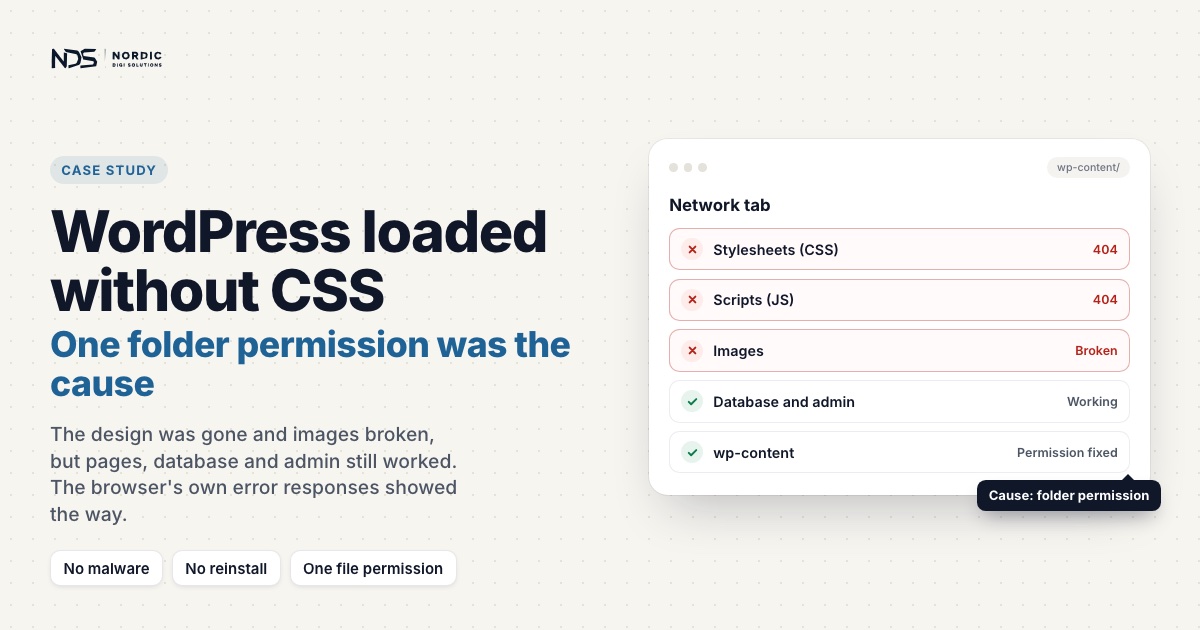
A WordPress website can look completely broken while its pages, database, and admin area are all still working. This site was loading as mostly unformatted HTML: the layout gone, images broken, navigation reduced to plain links, and parts of the dashboard unstyled. The cause was not malware, and not a failed update. It was a single directory permission on wp-content, quietly blocking the server from delivering every stylesheet, script, and image on the site.
This case study walks through the investigation, the actual server-level cause, and why reading the browser’s own error responses mattered more than reinstalling anything. If your site has lost its styling and you would rather talk it through first, our WordPress help page explains the layers we check and what is worth knowing before anyone starts changing things.
Project overview
Platform: WordPress with the YOOtheme framework, plus plugins including WooCommerce, Yoast SEO, Popup Maker, WP Mail SMTP and Click to Chat.
Problem: The public site served its text, but stylesheets, scripts and images under /wp-content/ came back as 404 Not Found, with hundreds of errors in the browser console.
Cause: The wp-content directory was set to 750, and on this host the process serving static files reached them as “other”.
Fix: 755 on that directory, nothing looser. No reinstall and no database changes.
Focus: Front-end asset loading, file permissions, evidence-led diagnosis.
The challenge: text loaded, everything else 404’d
The public site was serving its HTML content, but almost none of the visual or interactive assets came with it. To a visitor, the site looked like it had been stripped back to raw markup.
The symptoms:
- Pages rendering without their normal design
- Broken images across the whole site
- Unstyled navigation and page elements
- Missing plugin and theme styling
- Parts of the WordPress dashboard loading incorrectly
- Hundreds of errors in the browser console
The WordPress installation itself was reachable, which told us the database and the core PHP application were still running. The failure was specifically in retrieving files from the wp-content directory. That distinction, application works but static files do not, is what pointed the whole investigation toward the server rather than the site.
The investigation
Ruling out the obvious suspects
A symptom this dramatic invites a quick guess, and quick guesses here are expensive. A site loading as raw HTML could plausibly be malware, an incomplete migration, missing plugin files, a PHP configuration fault, or damaged rewrite rules. Each of those leads to a different repair, and the wrong repair can cause more damage than the original problem. So we ruled them out rather than assuming.
Malware. A scanner had flagged an infection warning, and because malware can modify files, database entries, and server rules, it had to be taken seriously. We inspected the files the scanner pointed at. Nothing was actually corrupted or injected. The warning was a false positive, of the kind these scanners routinely produce, and we set malware aside as the cause of the display problem rather than letting a scary label steer the diagnosis.
PHP configuration. We reviewed the server’s PHP settings and brought them up to sensible production values along the way: a 512 MB memory limit, 64 MB upload and POST limits, a 120 second execution limit, and a higher input variable limit. Worth doing for the health of the server, but we did not expect it to be the cause, and it was not. PHP limits govern how the application runs; they do not make static .css, .js, and image files return 404 Not Found. This was elimination, not the fix.
Rewrite rules. We inspected .htaccess. The WordPress rules were standard, with no unusual redirects or rewrites that could explain missing asset files. A malformed rewrite is a genuinely common cause of WordPress breakage, so much so that we have written a separate guide on how AI-generated .htaccess rules break WordPress, but it was not the culprit here.
The browser’s Network panel showed the pattern
The decisive evidence came from Chrome DevTools, in the Console and Network panels. The browser was receiving 404 Not Found responses for assets belonging to several unrelated plugins and the active theme at once.
The failing requests spanned assets from WooCommerce, Yoast SEO, Popup Maker, WP Mail SMTP, Click to Chat, and the YOOtheme framework. The URLs sat under:
/wp-content/plugins/(CSS and JavaScript)/wp-content/themes/(CSS and JavaScript)/wp-content/uploads/(images)
This is the detail that cracked it. If one plugin’s files had gone missing, that plugin alone would misbehave. But assets from many independent plugins, the theme, and the uploads folder were all failing together. Unrelated components do not corrupt themselves simultaneously. The one thing they share is their parent directory, so the problem almost certainly lived at the wp-content level, not inside any individual plugin or theme.
The cause: a directory permission the public could not traverse
We checked the permissions on the wp-content directory. It was set to 750.
That value grants read, write, and traverse to the owner, read and traverse to the group, and nothing at all to everyone else. Whether that breaks a public website depends entirely on which user the web server serves files as. On many stacks the server runs as the site’s owner or group, and 750 would be fine. On this host it did not: the process serving static files reached them as “other”, and “other” had no permission to enter the directory. So every request for a file inside wp-content came back 404, even though the files were sitting right there on disk.
This is why the site’s text loaded while its design did not. The PHP application, executed by the owner, could read everything it needed. The browser, fetching static assets through the public path, was locked out of the same folder.
The solution: 755 on the directory, nothing looser
We changed the wp-content directory from 750 to 755. That adds traverse access for everyone while keeping write access with the owner alone:
- Owner: read, write, traverse
- Group: read, traverse
- World: read, traverse
We then checked the rest of the site against WordPress’s own guide to changing file permissions. For shared hosting it gives 755 or 750 for directories and 644 or 640 for files, and it says no directory should ever be 777. On this host, the difference between those two directory values was the whole fault: 750 only works where the web server reaches files as the owner or the group. The structure we confirmed across the site was:
- Directories:
755 - Files:
644
We did not apply 755 to files that did not need it, and we did not reach for 777, which is a common and dangerous shortcut that makes files writable by anyone. The goal was the least access that lets the server do its job, not the most access that makes the error go away.
After the permission change and a refresh, the theme styling, navigation, scripts, and the great majority of visual components loaded again.
Results
The site’s layout was restored without rebuilding the WordPress installation or touching the database. Back in place: theme styling, plugin CSS, JavaScript behaviour, structured navigation, page layouts, most imagery, and normal front-end presentation.
One honest caveat. After the main issue was resolved, a smaller set of image URLs kept returning 404. Those were a different problem from the permission fault: specific media files that were genuinely missing from the uploads directory, or database references pointing at files that no longer existed. Our record confirms the design and asset-loading problem was resolved. It does not confirm that every last missing media file was later re-uploaded, and we would rather say so than imply a tidier ending than the evidence supports.
Why the diagnosis mattered
It would have been easy to file this under malware, a failed update, a broken theme, an incomplete plugin install, a PHP 8.3 compatibility fault, or a corrupted .htaccess. Any of those readings leads somewhere destructive: reinstalling WordPress, replacing plugins, or rolling back to an old backup, each carrying its own risk and none of them addressing a directory permission. The site would very likely have ended up in worse shape, with the actual cause untouched.
Checking the browser’s response codes and looking for a pattern across unrelated assets isolated the fault to a single shared setting. This is the same approach behind our other recoveries: we traced a legacy site that broke after a PHP update back to its real cause the same way, and separated a genuine security incident from ordinary breakage when we investigated and recovered a hacked Multisite network.
Permissions cut both ways. Too tight, and the server cannot read files it needs, as here. Too loose, and they become a security problem of their own. That is why file and folder permissions are step seven in our order of work for hybrid legacy PHP and WordPress sites, and why one recursive command across the whole account is the wrong fix: the right values depend on how the host runs PHP and serves files.
What to check on your own site
When WordPress serves its text but loses its styling, the visible page is only half the diagnosis. The most useful evidence is usually in the browser’s Network panel, in the response codes attached to each failed asset.
A systematic check works through:
- Whether CSS and JavaScript requests return
404,403, or500 - Whether the requested files physically exist on the server
- Whether the domain points to the correct document root
- Whether
.htaccesscontains any abnormal rules - Whether directory and file permissions are correct for the host
- Whether any genuinely missing media explains the remaining errors
Here, a single directory-permission correction brought back the majority of the site. That is the case for evidence-led troubleshooting over reinstalling WordPress or swapping out components that were never broken.
Has your WordPress site lost its design?
When a site suddenly loads without styling, shows broken images, or throws widespread asset errors, the cause is often in the hosting configuration rather than the theme or the page builder. We investigate the full request path, from the browser through the WordPress installation to the server, before applying any repair.
Our WordPress fix service starts with a free diagnosis, and you get a fixed price in writing before any work starts. A quick fix starts from €199 excl. VAT, and if we can’t fix it, you don’t pay. If the site is working but you suspect it is fragile underneath, WordPress maintenance from €99 a month keeps it updated, backed up daily and monitored. Tell us what you’re seeing and we’ll reply within 30 minutes during business hours.
Related case studies
Elementor Hamburger Menu Not Working: A JavaScript Console Error Case Study
The mobile menu was visible but wouldn't open. It looked like a caching issue, but the browser console revealed a single JavaScript syntax error from an Elementor plugin that was breaking every interactive element on the page. Here's how we traced it, and the safe way to fix it without touching plugin core files.
Read articleRestoring a Legacy WordPress Website After PHP Compatibility Errors
A legacy WordPress site built with an older theme, bundled shortcodes, dated builder components and outdated plugins started breaking after a PHP update. We restored admin access, resolved the critical fatal errors, handled plugin and builder conflicts, and recovered the broken promo box shortcode section while preserving the existing design.
Read articleHow We Fixed HostHorizon’s Infinite WooCommerce Checkout Loading
HostHorizon, a Dutch hosting provider, came to us when every customer hit the same wall: WooCommerce checkout would load forever, and no order ever completed. The cause was not in WooCommerce. It was a single line of .htaccess from years earlier, intercepting AJAX requests and returning HTML where JSON belonged.
Read article