
WooCommerce Checkout Stuck Loading? Common Causes and Fixes
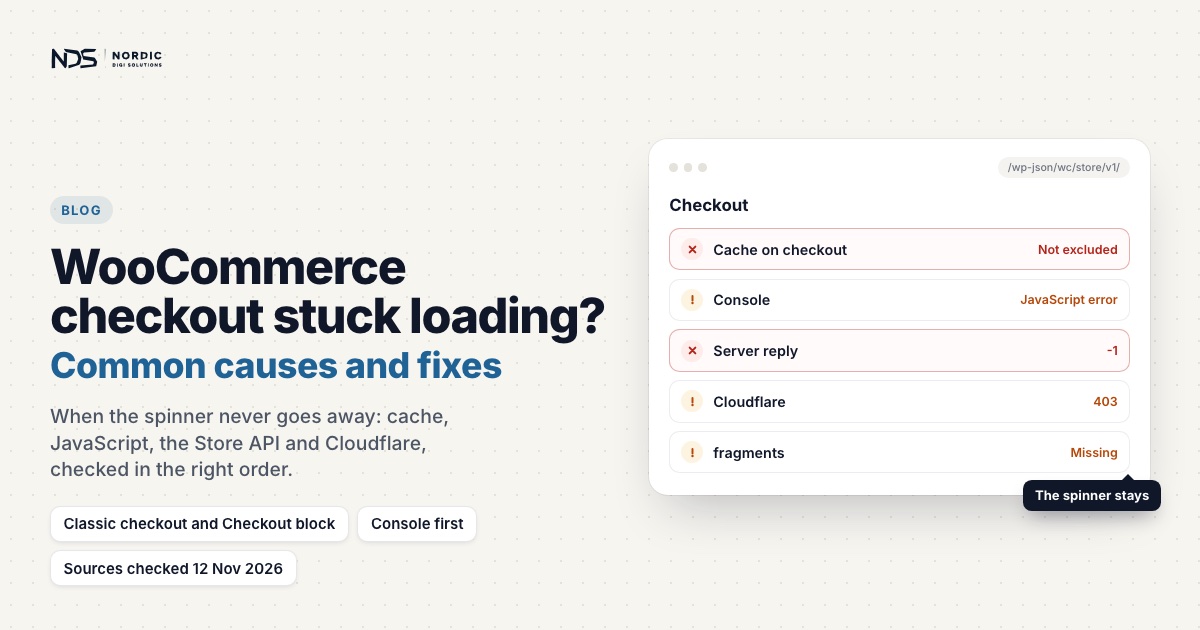
A WooCommerce checkout that keeps loading forever stops customers from placing orders while the rest of the site looks completely normal. The customer reaches checkout, enters their details, and the order review just keeps spinning. Sometimes the payment methods never appear, sometimes the Place order button does nothing, and sometimes nothing obvious happens at all.
The cause can sit in several layers: caching, plugin or theme conflicts, PHP warnings, server rewrites, security rules or broken JavaScript. So the fix is not to disable plugins at random or rebuild checkout, but to find where the checkout request breaks. This guide shows how.
What “WooCommerce Checkout Stuck Loading” Usually Means
Checkout is dynamic, and the requests it sends depend on the checkout type. To see which one you have, edit the page assigned as Checkout under WooCommerce → Settings → Advanced:
- Classic checkout (a Classic Shortcode or Shortcode block) uses WooCommerce’s AJAX endpoints:
/?wc-ajax=update_order_reviewwhen the page loads, an address field or the shipping method changes, or a coupon is applied or removed, and/?wc-ajax=checkoutwhen the customer clicks Place order. - Checkout block, the default for new stores since WooCommerce 8.3, sends its cart and checkout requests to the Store API under
/wp-json/wc/store/v1/.
On the classic checkout, the spinner is WooCommerce’s own loading overlay. Before sending update_order_review, the checkout script dims the order review and payment section, and it removes the overlay only when the response brings back fresh HTML for both. The request has no error handler, so a 403, a 500, an HTML page or broken JSON leaves the overlay up for good. The spinner is the symptom; the cause is whatever stopped a valid response: a request that never completes, an error, HTML instead of JSON, a cache or firewall answering instead of WordPress, PHP warnings in the response, or failing JavaScript.
Common Symptoms of a Broken WooCommerce Checkout
An endless spinner over the order review, payment methods that never appear, a Place order button that does nothing, a page that reloads without placing the order, shipping methods that never update, a blank order review box, console errors, or an order received page that is never reached. Customers often report that “payment is not working”, but checkout can break before the payment step even begins.
First Rule: Do Not Assume It Is the Payment Gateway
The payment plugin gets blamed first. But if the spinner appears while totals load, before anyone clicks Place order, no gateway has been asked to do anything yet. WooCommerce’s own guide treats a stall after Place order as a separate case, with the gateway, fraud and tax services, webhooks and mail as suspects. A quick test on staging:
- Enable a basic payment method such as bank transfer.
- Disable the main payment gateway.
- Test checkout again.
- Check whether the spinner still appears.
If checkout still hangs with a basic method, the payment provider is probably not the cause. If the trouble really is the payment step, our guide to WooCommerce payment problems covers that side.
Cause 1: AJAX Returning the Wrong Response
WooCommerce answers update_order_review with JSON. When the server returns a normal HTML page instead, the Network tab shows something like:
Status: 200 OK
Content-Type: text/html
A 200 looks successful, but the checkout script cannot use an HTML page, so the overlay stays. If the response body is a full document like this, something intercepted the request:
<!DOCTYPE html>
<html>
<head>
  <title>...</title>
</head>
<body>
...
</body>
</html>
When HTML, a login page or a redirect arrives where JSON belongs, WooCommerce’s guide points to a cache, a maintenance or security layer, a redirect, a proxy or a PHP warning; add .htaccess rewrites to that list. That is why the response body is the first thing to read.
Cause 2: Caching Checkout, Cart, or AJAX Requests
Cart, checkout and My Account must stay dynamic, because they show information specific to each customer. Most caching plugins exclude them already, but migrations, new plugins and host or CDN caches undo that. WooCommerce also lists the cookies to exclude from caching:
woocommerce_items_in_cart
woocommerce_cart_hash
wp_woocommerce_session_
With database caching, exclude _wc_session_ too; for WP Rocket, WooCommerce recommends avoiding JavaScript minification. Every cache, CDN, firewall and proxy layer must pass AJAX and Store API requests through without a stored response. Purge each layer before testing again.
What to check
- Are cart, checkout and My Account excluded in every cache layer?
- Do
?wc-ajax=and/wp-json/wc/store/requests bypass the cache? - Does a Cloudflare cache rule make HTML cacheable? Cloudflare does not cache HTML or JSON by default.
- Is host caching still active with the plugin off? Hosts often install it as a drop-in you cannot deactivate yourself.
- Is a separate mobile cache serving a different version?
- Is an optimization plugin minifying or rewriting checkout scripts?
Cause 3: PHP Warnings Breaking AJAX Responses
A checkout response has to be clean. On a normal page a PHP warning shows above the content; printed into an AJAX response, it breaks the JSON. Since PHP 8.0, reading an array key that does not exist raises a warning like this:
Warning: Undefined array key "redirect_cache"It comes from custom code that reads a key without checking it exists:
$id = $_SESSION['redirect_cache'];A safer version:
$id = isset($_SESSION['redirect_cache']) ? (int) $_SESSION['redirect_cache'] : 0;What to check
Look in the response body for warnings, notices, HTML before the JSON, or stray var_dump(), print_r() or echo output. Then log errors instead of displaying them, with WordPress’s standard debug settings in wp-config.php:
define('WP_DEBUG', true);
define('WP_DEBUG_LOG', true);
define('WP_DEBUG_DISPLAY', false);
@ini_set('display_errors', 0);
Errors then go to wp-content/debug.log (or a path you give WP_DEBUG_LOG), including notices raised during AJAX requests. WordPress recommends debug mode for local and staging sites, not live ones, so reproduce the fault on staging. Hiding errors never replaces fixing the code.
Cause 4: JavaScript Errors on the Checkout Page
Checkout leans heavily on JavaScript. An error in another script can stop it updating: a theme or custom checkout script, a missing dependency, a jQuery conflict, a tracking script, or an optimization plugin that changed how scripts load.
What to check
Open the Console in DevTools, clear it and reproduce the spinner. WooCommerce advises saving the first relevant error and its source file, since later errors can be consequences of the first. Look for references to:
checkout
wc_checkout_params
update_order_review
jQuery
payment_method
fragments
Also check whether a content security policy, a consent tool, an ad blocker, an optimization service or a browser extension blocked a checkout script or request. For checkout problems the Network tab usually tells you more than the Console.
Cause 5: Theme or Template Conflicts
Checkout breaks when a theme overrides WooCommerce templates badly: outdated overrides, removed hooks or notices, a layout that hides required elements, CSS that hides payment methods or buttons, or a theme that skips wp_head() or wp_footer(), which WordPress needs to print the scripts checkout depends on.
What to check
Go to WooCommerce → Status. The System Status Report has a Templates section that lists every WooCommerce template your theme overrides and flags outdated ones. Overrides live in:
your-theme/woocommerce/Compare overridden checkout templates with the current WooCommerce versions. Then, on staging, switch to Storefront or a default theme such as Twenty Twenty-Five. If checkout works, the theme or its overrides are the problem.
Cause 6: Plugin Conflicts
Plugin conflicts are common, but test them methodically rather than by guesswork, and on staging rather than a busy live store.
How to test safely
On staging, update everything first. Then deactivate all plugins except WooCommerce and the extensions involved, and test. If checkout works, reactivate plugins one at a time, testing after each, starting with the likeliest:
- Payment plugins
- Shipping plugins
- Checkout field plugins
- Cache and optimization plugins
- Security plugins
- Custom snippets
- Tracking and analytics plugins
If the problem survives with everything off, look at the Must-Use and Drop-ins sections of the plugin list: hosts install some of these, caching drop-ins included, and you cannot switch them off yourself. Tick Disable cache in the DevTools Network panel while you test.
Cause 7: Server-Level Rewrite or Redirect Rules
Sometimes WordPress never sees the request, because a rule in .htaccess, Nginx, LiteSpeed or a CDN answers first. Rules for the site root are the classic trap: in .htaccess, Apache matches a RewriteRule pattern against the path only and passes the query string through, so a homepage rule such as RewriteRule ^$ /home.html [L] also catches:
/?wc-ajax=update_order_reviewWooCommerce then gets a static homepage, a redirect, a login page or a firewall message, and checkout spins although WooCommerce itself is fine. This is precisely what happened in one checkout case we traced to an .htaccess rewrite. If rules were added with an AI tool, see AI-generated .htaccess rules that break WordPress.
What to check
Review .htaccess, Nginx and LiteSpeed rules, Cloudflare and redirect plugin rules, server cache rules and firewall logs. Be careful with anything that affects:
/
/checkout/
/cart/
/my-account/
/?wc-ajax=
/wp-json/wc/store/
Also compare the request URL with the addresses under Settings → General: an old domain, a www mismatch or HTTP requests from an HTTPS page can get checkout requests blocked or redirected. Ask your host before changing those addresses.
Cause 8: Security Firewall or ModSecurity Blocking Requests
Checkout requests carry addresses, payment data, nonces and session data, and a security plugin or a web application firewall such as ModSecurity can decide one looks suspicious. WooCommerce’s guide reads a 403 on a checkout request as a firewall, a security rule, an expired or missing nonce, or another authorization check.
What to check
In the Network tab, inspect the failed request for a 403, firewall HTML, a captcha or challenge page, or messages like “Access denied”. Behind Cloudflare, a challenged response carries the header cf-mitigated: challenge and is always HTML, whatever was requested. If you suspect the server firewall, ask your host to check its logs at the exact time you recorded.
Cause 9: Checkout Field Customization Problems
Custom checkout fields break checkout when added carelessly: required fields without validation, invalid keys, unsanitized values, address fields removed the wrong way, or JavaScript expecting a field that no longer exists. On the classic checkout, change fields through the woocommerce_checkout_fields filter, not by deleting markup:
add_filter('woocommerce_checkout_fields', function($fields) {
    unset($fields['billing']['billing_address_2']);

    if (isset($fields['billing']['billing_phone'])) {
        $fields['billing']['billing_phone']['required'] = true;
    }

    return $fields;
});
That filter only applies to the shortcode checkout; the Checkout block has its own API for additional fields. WooCommerce also warns that its Checkout Field Editor extension overrides custom field code, so do not run both. Never edit WooCommerce core files or hide required fields with CSS alone.
Cause 10: Missing WooCommerce Pages or Wrong Page Settings
WooCommerce needs its cart, checkout and account pages. Go to WooCommerce → Settings → Advanced and confirm that Page setup assigns the right Cart page, Checkout page, My account page and, if you use one, Terms and conditions page. Then confirm the checkout page contains the Checkout block or the shortcode:
[woocommerce_checkout]WooCommerce notes that the shortcode version sometimes works better with extensions. Even so, do not swap one checkout type for the other as a first troubleshooting step: its guide warns that switching can hide the original compatibility problem.
Cause 11: REST API or admin-ajax Issues
The Checkout block depends on the Store API, which runs on the WordPress REST API under /wp-json/. Block the REST API and the block checkout cannot load or submit, and the block editor fails too, since the REST API is its foundation. Plugins that use WordPress’s own AJAX system send requests to /wp-admin/admin-ajax.php, so a block there can break features a gateway or shipping plugin adds to checkout.
/wp-json/wc/store/v1/cart
/wp-admin/admin-ajax.php
/?wc-ajax=...
Possible blockers include a security plugin that disables the REST API, a firewall, a server rule, a malformed redirect, mixed HTTP and HTTPS content, a caching layer or a wrong site URL.
How to Debug WooCommerce Checkout Loading Properly
Step 1: Reproduce the issue safely
Use a staging copy with live gateways disconnected or in test mode; WooCommerce warns that staging can still charge a payment method, send email and call webhooks. Test one simple, in-stock product without a coupon, and note the address, shipping and payment method, time, browser and device.
Step 2: Open the Network panel
In DevTools, select Network, filter on Fetch/XHR and tick Preserve log. Clear the list and repeat the action. Look for wc-ajax=update_order_review or wc-ajax=checkout on the classic checkout, or requests under /wp-json/wc/store/ on the block. If it stalls after Place order, check WooCommerce → Orders before retrying: the order may already exist.
Step 3: Read the status code
Per WooCommerce’s guide: a long-pending request points to slow PHP, database work, an external API, email or a resource limit; 403 to a firewall, security rule or nonce; 404 to a wrong URL, rewrite rule or proxy route; 500 to a PHP fatal error. A mixed-content or cross-origin error means the page and endpoint disagree about HTTPS, hostname, port or origin.
Step 4: Check the response headers
Look at Content-Type, Cache-Control, Location and cf-mitigated. text/html where JSON belongs means read the body next; Location means a redirect; cf-mitigated: challenge means Cloudflare challenged the request.
Step 5: Check the response body
Look for a full HTML page, a PHP warning, a login page, a security block, a cached homepage or broken JSON. A response of just -1 can mean an AJAX nonce check failed; a cached page with an expired nonce is one possible reason.
Step 6: Check the Console
Save the first relevant error and its file; ignore extension noise unless it touches checkout scripts. After Place order, the message Unable to fix malformed JSON means the checkout response contained something other than clean JSON.
Step 7: Check the logs
WooCommerce → Status → Logs includes a fatal-errors log; gateway logs usually have to be enabled in the gateway’s settings first. Then check the PHP error log, debug.log, the server error log and any firewall log. A System Status Report shows versions, memory limits, template overrides and active plugins. Raise the memory limit only if a log shows it was exhausted.
Step 8: Test theme and plugin conflicts
On staging, as above. Confirm the culprit by making the problem disappear and reappear with the same combination.
What a Healthy WooCommerce Checkout Request Should Look Like
On the classic checkout, update_order_review finishes quickly and returns JSON with keys such as result, messages, reload and fragments. On the block, the Store API answers with JSON too. No full HTML page, no PHP warning, no cached copy, no firewall block. The totals and payment methods refresh, and Place order creates exactly one order.
What Not to Do
- Rebuilding checkout immediately
- Editing WooCommerce core files
- Hiding errors without finding the cause
- Disabling random plugins on a live store during peak traffic
- Assuming the payment gateway is the cause
- Switching between the Checkout block and the classic checkout as a first fix
- Clearing cache repeatedly without checking the Network response
- Raising the memory limit without a memory error in the logs
- Adding more snippets to “force” checkout to work
- Ignoring PHP warnings because “the page still loads”
- Changing
.htaccesswithout testing dynamic requests
The fastest fix usually comes from identifying the exact failing request.
When to Ask for Help
Bring in help when checkout keeps spinning after basic troubleshooting, update_order_review returns HTML instead of JSON, payment methods disappear, Place order does nothing, checkout works only sometimes, PHP warnings appear at checkout, it broke after someone added AI-generated code, or cache exclusions and conflict tests have not revealed the cause. Checkout issues are usually fixable, but guessing wastes time and can create new problems.
Final Thoughts
A WooCommerce checkout stuck loading is rarely a mystery once you follow the request. Stop watching the spinner and check what the server returns. Often the problem is not WooCommerce but something around it: caching, rewrites, PHP output, security rules, theme overrides, JavaScript or plugins. The safest fix restores WooCommerce’s native flow instead of replacing it.
Checkout still spinning? Our WooCommerce checkout fix service starts from €299 excl. VAT, with a free assessment, a response within 1 hour during business hours, a fixed price agreed in writing before work starts, and a 14-day recurrence warranty. Want to rule out the payment side first? Our free guide to WooCommerce payment problems walks through it. Or send us the issue and we’ll trace it from the spinner back to the request that is breaking.
Sources
Last checked 12 November 2026.
- WooCommerce: Endless loading/spinner on the checkout page. Checkout types, requests, status codes, caching, nonces and logs.
- WooCommerce on GitHub: checkout.js. The loading overlay and when it lifts.
- WooCommerce on GitHub: class-wc-ajax.php. The ?wc-ajax= endpoints and their response.
- WooCommerce Developer Docs: Store API. The Checkout block’s endpoints.
- WooCommerce: Page shortcodes. Shortcode and blocks default from 8.3.
- WooCommerce Developer Docs: Configuring caching plugins. What to exclude from caching.
- Cloudflare Docs: Default cache behavior. What Cloudflare caches by default.
- Cloudflare Docs: Detect a Challenge Page response. The cf-mitigated header.
- PHP Manual: Backward incompatible changes in PHP 8.0. Undefined array keys warn.
- WordPress Developer Resources: Debugging in WordPress. Debug settings; not for live sites.
- WooCommerce: Understanding the System Status Report. Template overrides, Storefront test and logs.
- WooCommerce: How to test for conflicts. The conflict test and drop-ins.
- WooCommerce Developer Docs: Customising checkout fields. The checkout fields filter.
- WooCommerce: Advanced settings. The page setup.
- WordPress REST API Handbook. What runs on the REST API.
- WordPress Plugin Handbook: AJAX. admin-ajax.php.
- Chrome for Developers: Network features reference. Fetch/XHR, Preserve log, Disable cache.
- Apache HTTP Server Documentation: mod_rewrite. Patterns ignore the query string.
- OWASP ModSecurity on GitHub. What ModSecurity is.
Related articles
How to Convert Static HTML into a WordPress Theme Without Breaking the Site
AI can generate a good-looking static HTML site in minutes, but forcing it into WordPress with file uploads and .htaccess rewrites breaks routing, plugins, forms and checkout. This 18-step guide shows how to convert static HTML into a proper WordPress theme, with header, footer, enqueued assets, menus and native WooCommerce intact.
Read articleHow AI-Generated .htaccess Rules Can Break WordPress
A single AI-generated .htaccess rule can change how every request reaches WordPress, and break checkout, AJAX, forms or the REST API while the homepage still loads perfectly. Here's why these rewrites are so risky, the mistakes to avoid, and how to review a rule safely before it goes live.
Read articleBefore You Paste AI-Generated PHP into WordPress, Check These Things
AI can write a WordPress PHP snippet in seconds, but pasted in without review it can trigger warnings, break checkout AJAX, cause a white screen, or create redirect loops. Here are the 14 things to check before you paste AI-generated PHP into WordPress, from variable checks and sanitization to hooks, nonces, and a safer placement strategy, with before-and-after code.
Read article