
How to Convert Static HTML into a WordPress Theme Without Breaking the Site
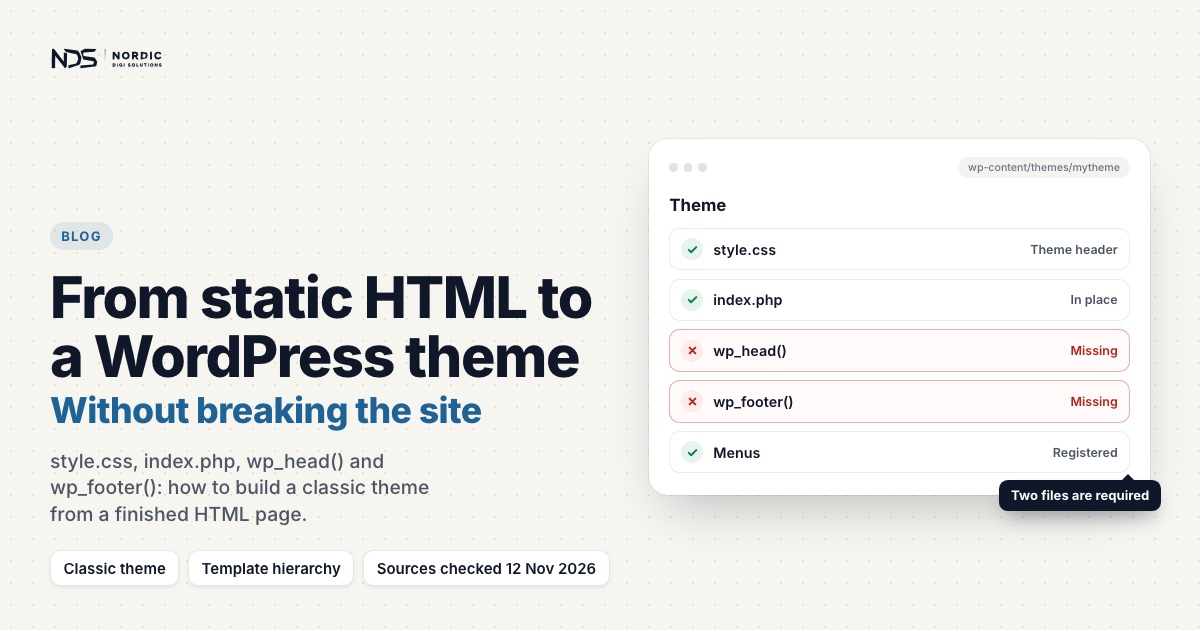
AI tools can generate a good-looking static HTML site in minutes. That is useful, but a static HTML file is not a WordPress theme. A static page is markup, CSS and JavaScript. A theme has to work inside a dynamic system of templates, hooks, menus, plugins, forms, SEO plugins, caching and sometimes WooCommerce.
Problems start when a static design is forced into WordPress with shortcuts: uploading home.html, rewriting / to an HTML file, hardcoding asset URLs, or skipping wp_head() and wp_footer(). The homepage looks fine while the rest of the site breaks. This guide shows how to convert static HTML into a proper theme without breaking routing, plugins, forms, checkout, SEO or future updates.
Static HTML vs WordPress Theme: The Core Difference
A static HTML site usually has files like:
home.html
about.html
contact.html
style.css
script.js
images/
Each page is a separate file and links point directly to files. A basic classic WordPress theme looks different:
style.css
functions.php
header.php
footer.php
front-page.php
page.php
single.php
index.php
assets/
  css/
  js/
  images/
template-parts/
Only style.css and index.php are required. For every request, WordPress works out what kind of page is being asked for and searches down the template hierarchy until it finds a matching file in the theme. The theme provides the layout; WordPress handles routing, content, plugins and menus. So a static design should be converted into the theme system, not forced around it.
Why You Should Not Just Upload HTML Files to WordPress
It is tempting to upload home.html and load it with an .htaccess rule like:
RewriteRule ^$ /home.html [L]The homepage loads fast. The trouble is elsewhere. In .htaccess, Apache matches a rule’s pattern against the path only, never the query string, which passes through unchanged. So ^$ matches the bare homepage and also every request to the site root that carries parameters. WooCommerce’s AJAX endpoints are such requests, the home URL plus ?wc-ajax=update_order_review and similar, so they get home.html back instead of JSON. We traced exactly this in a checkout case where a static-homepage rewrite intercepted WooCommerce AJAX and made checkout load forever.
Requests the rule catches never reach WordPress, so no PHP runs for them: no plugins, SEO tags, analytics, consent banner, form processing or WooCommerce session. The page can look right while the architecture is fragile.
Classic Theme or Block Theme?
WordPress supports two kinds of themes. Classic themes use PHP templates, the system WordPress has used since 2005. Block themes, which the Theme Handbook now focuses on, use HTML templates made of blocks, keep design settings in theme.json, and let the owner edit templates in the Site Editor.
This guide builds a classic theme, because AI-generated HTML moves into PHP templates almost unchanged. A block theme takes more work up front, since every section is rebuilt as blocks, but the owner can then change headers, footers and layouts without a developer. It needs style.css and templates/index.html, keeps headers and footers in parts/, and follows the same template hierarchy. Decide before you start: switching later means rebuilding the templates.
When Static HTML Conversion Makes Sense
Conversion is worth it when you have a finished design (AI-generated or not), want WordPress to manage the content, need a reusable header and footer, and want plugins and SEO tools to work. The goal is to keep the design while making the structure WordPress-native.
Step 1: Organize the Static Files First
Before converting anything, organize the source. A messy folder might look like this:
home.html
contact.html
over-ons.html
privacybeleid.html
style-final-new.css
style2.css
script-copy.js
logo-new-final.png
img/
old/
backup/
Clean it into something predictable:
source-html/
  home.html
  contact.html
  privacy.html
  terms.html
  assets/
    css/
    js/
    images/
Then identify the homepage, the sections that repeat, where the header and footer start and end, which CSS, JS and images are actually used, and which pages should become WordPress pages. Do not start coding before you understand the source.
Step 2: Create a Proper WordPress Theme Folder
Create a folder in wp-content/themes/, for example:
mytheme/
  style.css
  functions.php
  index.php
  header.php
  footer.php
  front-page.php
  page.php
  single.php
  assets/
    css/
    js/
    images/
  template-parts/
Replace mytheme with your own slug, here and in the function names and handles below. The Theme Handbook asks you to prefix them so they cannot collide with WordPress core or a plugin.
Step 3: Add the Theme Header in style.css
WordPress registers the theme from a header comment at the top of style.css:
/*
Theme Name: My Theme
Theme URI: https://example.com/
Author: Your Company
Description: Custom WordPress theme converted from static HTML.
Version: 1.0.0
Text Domain: mytheme
*/
The file must sit in the theme’s root folder. Theme Name is the only field WordPress strictly needs. Your main CSS can live in assets/css/main.css as long as this header exists.
Step 4: Set Up functions.php
functions.php is where you add theme support and menus:
<?php
if (!defined('ABSPATH')) {
    exit;
}

function mytheme_setup() {
    add_theme_support('title-tag');
    add_theme_support('post-thumbnails');
    add_theme_support('custom-logo');
    add_theme_support('html5', array(
        'search-form',
        'comment-form',
        'comment-list',
        'gallery',
        'caption',
    ));

    register_nav_menus(array(
        'primary' => __('Primary Menu', 'mytheme'),
        'footer'  => __('Footer Menu', 'mytheme'),
    ));
}
add_action('after_setup_theme', 'mytheme_setup');
Register support on after_setup_theme; init is too late for some features. Leave 'style' and 'script' out of the html5 list, even though many tutorials still add them: since WordPress 7.0 both are deprecated and unused. With title-tag, WordPress prints the page title itself, so header.php needs no <title>.
Step 5: Enqueue CSS and JavaScript Properly
Static HTML loads assets with tags like these:
<link rel="stylesheet" href="style.css">
<script src="script.js"></script>
The Theme Handbook says never to hard-code <link>, <style> or <script> tags in a theme. Enqueue the files on the wp_enqueue_scripts hook, so WordPress handles dependencies and order alongside plugin files:
function mytheme_enqueue_assets() {
    wp_enqueue_style(
        'mytheme-main',
        get_parent_theme_file_uri('assets/css/main.css'),
        array(),
        filemtime(get_parent_theme_file_path('assets/css/main.css'))
    );

    wp_enqueue_script(
        'mytheme-main',
        get_parent_theme_file_uri('assets/js/main.js'),
        array(),
        filemtime(get_parent_theme_file_path('assets/js/main.js')),
        true
    );
}
add_action('wp_enqueue_scripts', 'mytheme_enqueue_assets');
The version argument is added to the URL for cache busting; the file’s modification time makes browsers fetch each new version. The final true loads the script before </body>, and since WordPress 6.3 you can pass array('in_footer' => true, 'strategy' => 'defer') instead. Need jQuery? Use the copy WordPress ships as a dependency.
Step 6: Convert the HTML Header into header.php
Move the top of the HTML file into header.php. A static file may start like this:
<!DOCTYPE html>
<html lang="en">
<head>
  <meta charset="UTF-8">
  <title>Website Title</title>
  <link rel="stylesheet" href="style.css">
</head>
<body>
<header>
  ...
</header>
In WordPress it should become:
<!DOCTYPE html>
<html <?php language_attributes(); ?>>
<head>
    <meta charset="<?php bloginfo('charset'); ?>">
    <meta name="viewport" content="width=device-width, initial-scale=1">
    <?php wp_head(); ?>
</head>
<body <?php body_class(); ?>>
<?php wp_body_open(); ?>

<header class="site-header">
    <div class="container">
        <a class="site-logo" href="<?php echo esc_url(home_url('/')); ?>">
            <?php bloginfo('name'); ?>
        </a>

        <?php
        wp_nav_menu(array(
            'theme_location' => 'primary',
            'menu_class'     => 'primary-menu',
            'container'      => 'nav',
            'container_class'=> 'site-navigation',
            'fallback_cb'    => false,
        ));
        ?>
    </div>
</header>
Never remove wp_head(). WordPress uses it to print the title tag, fire wp_enqueue_scripts and print the enqueued stylesheets and head scripts, your own from Step 5 included. Keep wp_body_open() too: it fires right after <body>, where plugins print code and WordPress renders the admin toolbar.
Step 7: Convert the Footer into footer.php
The bottom of the static file goes into footer.php:
<footer>
  ...
</footer>
<script src="script.js"></script>
</body>
</html>
In WordPress:
<footer class="site-footer">
<div class="container">
<p>© <?php echo esc_html(date('Y')); ?> <?php bloginfo('name'); ?>. All rights reserved.</p>
<?php
wp_nav_menu(array(
'theme_location' => 'footer',
'menu_class' => 'footer-menu',
'container' => 'nav',
'fallback_cb' => false,
));
?>
</div>
</footer>
<?php wp_footer(); ?>
</body>
</html>Do not remove wp_footer(). It prints every script enqueued for the footer, yours and the plugins’. Without it, forms, analytics, cookie banners, sliders, mobile menus, live chat and tracking pixels that load there stop working. A missing wp_footer() is a common reason sites break after HTML conversion.
Step 8: Convert the Homepage into front-page.php
When front-page.php exists, WordPress always uses it for the front page, whatever Settings → Reading says, so it is the right home for a custom homepage:
<?php get_header(); ?>

<main id="main" class="site-main">
    <section class="hero">
        <div class="container">
            <h1>Your main headline</h1>
            <p>One clear sentence about what you offer.</p>
        </div>
    </section>

    <section class="services">
        ...
    </section>
</main>

<?php get_footer(); ?>
Content goes between get_header() and get_footer(). Never paste a second full HTML document inside the template:
<?php get_header(); ?>

<!DOCTYPE html>
<html>
<head>
...
</head>
<body>
...
</body>
</html>

<?php get_footer(); ?>
That duplicates the document structure and causes layout, SEO and script problems.
Step 9: Convert Inner Pages into WordPress Pages
Pages like about.html, contact.html and privacy.html rarely need their own PHP templates. Create normal pages in the admin, paste in the cleaned content, and let page.php handle the layout:
<?php get_header(); ?>

<main id="main" class="site-main">
    <div class="container">
        <?php
        while (have_posts()) :
            the_post();
            ?>
            <article id="post-<?php the_ID(); ?>" <?php post_class(); ?>>
                <h1><?php the_title(); ?></h1>
                <div class="entry-content">
                    <?php the_content(); ?>
                </div>
            </article>
            <?php
        endwhile;
        ?>
    </div>
</main>

<?php get_footer(); ?>
Use custom page templates only when a page needs a unique structure.
Step 10: Fix Image and Asset Paths
Static HTML often uses relative paths:
<img src="images/hero.png" alt="Hero image">Inside a theme, use:
<img src="<?php echo esc_url(get_parent_theme_file_uri('assets/images/hero.png')); ?>" alt="Hero image">WordPress URLs like /about/ are not folders, so a relative path makes the browser ask for /about/images/hero.png and get a 404. Absolute paths break when the site moves from staging to production or to a new domain. Use the Theme Handbook’s helper functions for every asset URL (get_theme_file_uri() if a child theme should be able to replace the file), and put content images in the Media Library.
Step 11: Replace Static Menus with WordPress Menus
A static menu:
<nav>
  <a href="/">Home</a>
  <a href="/about.html">About</a>
  <a href="/contact.html">Contact</a>
</nav>
becomes a WordPress menu:
wp_nav_menu(array(
    'theme_location' => 'primary',
    'menu_class'     => 'primary-menu',
    'container'      => 'nav',
    'container_class'=> 'site-navigation',
    'fallback_cb'    => false,
));
Then build the menu and assign it to the Primary location under Appearance → Menus. That screen is for classic themes; block themes use the Navigation block in the Site Editor. 'fallback_cb' => false stops WordPress from listing every page while no menu is assigned.
Step 12: Keep Forms WordPress-Native
Static contact forms often look like:
<form action="mailto:[email protected]">
...
</form>
A mailto: form never reaches your site, so nothing is validated, stored or logged. Use Contact Form 7, Fluent Forms, WPForms, Gravity Forms or a custom handler kept in a plugin, since the Theme Handbook puts site-critical features in plugins so they survive a theme change. A handler must validate and sanitize input, escape output, check a nonce, stop spam and get the email delivered. Delivery is where many form problems start (see why a contact form stops sending email).
Step 13: Preserve SEO and Plugin Output
Static HTML hardcodes meta tags:
<title>Page Title</title>
<meta name="description" content="...">
In WordPress, SEO plugins print the title, meta description, canonical URL, Open Graph tags, schema and robots tags through wp_head(). Keep a hardcoded <title> next to title-tag support and every page gets two titles; drop wp_head() and the plugin output disappears. Also check breadcrumbs, the sitemap, analytics, cookie consent and structured data. A theme can look right and still be technically weak.
Step 14: Keep WooCommerce Native When Relevant
Never convert cart and checkout into static HTML. WooCommerce cannot work without its cart, checkout and account pages, and since WooCommerce 8.3 new stores get the Cart and Checkout blocks by default. Those live in the page content, so page.php must call the_content().
On a classic theme, declare support with add_theme_support('woocommerce') on after_setup_theme, style with CSS and use WooCommerce’s hooks for small changes. Override a template only when the HTML must change: overrides live in a woocommerce/ folder in your theme, need updating when WooCommerce changes the original, and must keep every hook so plugins can still add content. Then test the full order flow.
Step 15: Avoid Duplicate Headers, Footers, and Sidebars
A common surprise after activation is a column nobody asked for: a search box, recent posts, archives, categories. It usually means the wrong template is loading or sidebar code came along from a starter theme. Search the theme for:
get_sidebar();
dynamic_sidebar();
the_widget();
Remove the calls you don’t need. To confirm which template loads, add a temporary comment at the top of front-page.php on staging, reload the homepage and view the source:
<!-- template: front-page.php -->If the comment is missing, WordPress is using another template.
Step 16: Make the Theme Mobile Responsive
Conversion can break a responsive design. Check the mobile header, menu toggle, hero, forms, tables, checkout, footer columns and long headings. DevTools device mode helps, but finish on real phones. Watch these in particular:
max-width
overflow-x
grid-template-columns
flex-wrap
position: fixed
sticky headers
Most static designs include a baseline like this; add it if yours does not:
* {
    box-sizing: border-box;
}

img {
    max-width: 100%;
    height: auto;
}
Horizontal scrolling usually means one element is wider than the screen. Temporarily outline everything with * { outline: 1px solid red; }, find the box that sticks out and fix that element, rather than hiding the overflow on the whole page.
Step 17: Test the WordPress Template Hierarchy
The templates that matter most for a converted site:
front-page.php  → front page
page.php        → pages
single.php      → blog posts
singular.php    → posts and pages without their own template
archive.php     → archives
404.php         → not found page
index.php       → fallback for everything
WordPress requires only index.php, next to style.css. Include at least front-page.php, page.php, single.php and index.php, plus 404.php so missing pages keep your design. A basic index.php:
<?php get_header(); ?>

<main id="main" class="site-main">
    <div class="container">
        <?php
        if (have_posts()) :
            while (have_posts()) :
                the_post();
                the_title('<h2>', '</h2>');
                the_excerpt();
            endwhile;
        else :
            echo '<p>No content found.</p>';
        endif;
        ?>
    </div>
</main>

<?php get_footer(); ?>
Every request WordPress cannot match ends in index.php, so never rely on front-page.php alone.
Step 18: Test After Activation
Test the homepage, pages, a blog post, the 404 page, search, the contact form, menus on desktop and mobile, footer links, the admin bar, SEO output, the cookie banner, analytics and caching. With WooCommerce, also test the product page, cart, checkout, payment methods, the order received page and emails. A theme is ready when the whole site works, not when the homepage looks right.
Common Mistakes During Conversion
- Hardcoded local paths such as
C:/Users/Desktop/site/style.css: enqueue withwp_enqueue_style(). - Missing
wp_head()orwp_footer(): your own CSS and JS, plugin scripts and SEO output fail. - Full HTML documents inside templates: no second
html,headorbodywhen you useget_header()andget_footer(). - The homepage served through .htaccess: use
front-page.php. - Hardcoded menus: use
wp_nav_menu(). - Editing live without a backup: always keep a rollback option.
A Safer Conversion Workflow
- Back up the current site and create a staging copy.
- Organize the static HTML files.
- Choose a classic or a block theme.
- Create the theme folder with
style.cssandfunctions.php. - Enqueue CSS and JS.
- Build
header.phpandfooter.php. - Convert the homepage into
front-page.php. - Create
page.php,single.phpandindex.php. - Replace hardcoded paths and menus.
- Connect forms to a real form system.
- Test plugin output, mobile and business-critical flows.
- Deploy, clear every cache and test again.
This is slower than uploading an HTML file, but far safer and easier to maintain.
When to Ask for Help
Get help if the homepage works but other pages break, unexpected widgets appear, CSS does not load, plugins or forms stop working, menus cannot be edited, SEO tags are missing, the wrong template loads, or .html files and .htaccess rules are holding the site together. A stuck checkout has its own guide: WooCommerce checkout stuck loading. If WordPress shares the site with an older custom PHP application, read what we check first on hybrid PHP and WordPress sites. These signs usually mean the structure needs cleanup, not more patches.
Final Thoughts
Renaming .html files to .php does not make a WordPress theme. A proper conversion moves the design into WordPress: header in header.php, footer in footer.php, homepage in front-page.php, assets enqueued, menus and forms handled by WordPress, and routing left to WordPress. AI-generated HTML is a fine starting point, but the finished site still needs that structure.
Have a finished design that should become a proper WordPress site? Our WordPress development service builds it as a real theme, from €999 excl. VAT, with a fixed price agreed in writing before work starts. If your site already mixes static HTML, custom PHP and WordPress templates, our WordPress customization service cleans up the structure at €99/hr excl. VAT, or at a fixed price when the scope is clear. Send us the site and we’ll map out the safest path to a proper theme.
Sources
Last checked 12 November 2026.
- WordPress Theme Handbook: What Is a Theme?. Block and classic themes; site-critical features in plugins.
- WordPress Theme Handbook: Theme Structure. The files a block theme needs.
- WordPress Theme Handbook: Main Stylesheet (style.css). Location and required header field.
- WordPress Theme Handbook: Template Files. Required files and front-page.php.
- WordPress Theme Handbook: Template Hierarchy. How WordPress picks a template.
- WordPress Theme Handbook: Theme Functions. Setup function, prefixes and menus.
- WordPress Theme Handbook: Including Assets. Enqueueing, versions, strategies and URL helpers.
- WordPress Theme Handbook: Navigation Menus. Appearance → Menus and fallback_cb.
- WordPress Developer Reference: add_theme_support(). title-tag and the deprecated html5 arguments.
- WordPress Developer Reference: wp_enqueue_script(). Dependence on wp_head() and wp_footer().
- WordPress core on GitHub: default-filters.php. What wp_head(), wp_body_open() and wp_footer() print.
- WordPress Developer Resources: Security. Validating, sanitizing and escaping form data.
- WooCommerce Developer Docs: Classic theme developer handbook. Theme support, hooks and overrides.
- WooCommerce: Page shortcodes. Required store pages and the blocks default from 8.3.
- Apache HTTP Server Documentation: mod_rewrite. Patterns match the path, not the query string.
- WooCommerce on GitHub: class-wc-ajax.php. The ?wc-ajax= endpoint format.
Related articles
How AI-Generated .htaccess Rules Can Break WordPress
A single AI-generated .htaccess rule can change how every request reaches WordPress, and break checkout, AJAX, forms or the REST API while the homepage still loads perfectly. Here's why these rewrites are so risky, the mistakes to avoid, and how to review a rule safely before it goes live.
Read articleBefore You Paste AI-Generated PHP into WordPress, Check These Things
AI can write a WordPress PHP snippet in seconds, but pasted in without review it can trigger warnings, break checkout AJAX, cause a white screen, or create redirect loops. Here are the 14 things to check before you paste AI-generated PHP into WordPress, from variable checks and sanitization to hooks, nonces, and a safer placement strategy, with before-and-after code.
Read articleAI-Generated WordPress Code Review Checklist
AI can generate WordPress code in seconds, but a snippet that looks correct can still break checkout, redirects, AJAX, or plugin compatibility. This 20-point checklist gives you a practical way to review AI-generated code before it touches functions.php, .htaccess, or WooCommerce, covering placement, hooks, sanitization, escaping, security, performance, and a rollback plan.
Read article