
Common Mistakes People Make When Using AI-Generated Code in WordPress
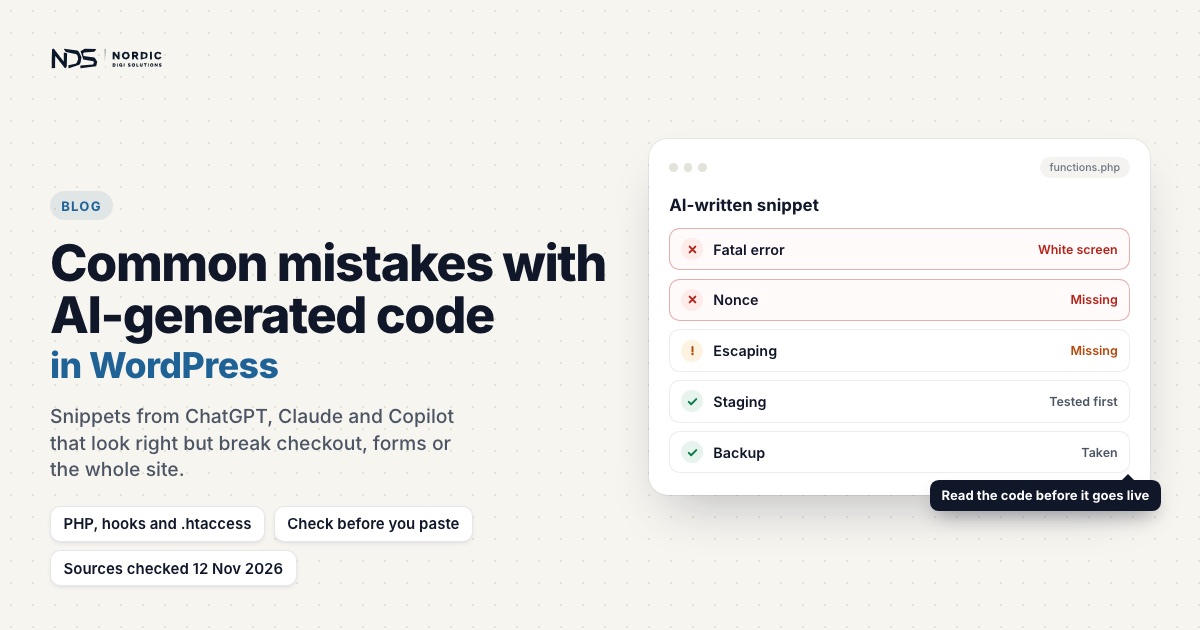
AI tools can build fast. They generate HTML layouts, CSS, PHP snippets, WordPress hooks, WooCommerce customizations and whole page structures in minutes, and that speed is genuinely useful. The catch is that WordPress is not a folder of static files. It is a dynamic system with routing, templates, hooks, plugins, AJAX requests, REST API endpoints, caching layers and database-driven content, and WooCommerce adds carts, customer sessions and payment callbacks on top. That is where AI-generated WordPress mistakes tend to hide.
The code can look correct. The homepage loads and the design looks polished, while a hidden routing rule, an unsafe PHP snippet or a misplaced template quietly breaks checkout, forms, login, search or the mobile layout.
In one WooCommerce case we worked on, checkout kept loading forever. The cause was neither the payment provider nor WooCommerce. A single .htaccess line, added years earlier to serve the homepage as a static HTML file, was catching WooCommerce’s AJAX requests and answering them with the homepage. An AI tool asked for a faster homepage can produce the same shortcut, and it breaks checkout the same way.
Below are 12 common mistakes people make with AI-generated code in WordPress, why each one matters, and a safer way to work. Where a topic needs more room, we link to a separate post.
The real risk is code nobody reviewed
AI-generated code is not automatically bad. It is good at page sections, CSS layouts, simple PHP snippets, boilerplate theme files, explaining error messages and first drafts of WooCommerce customizations. The trouble starts when that code goes straight into a live site. A real WordPress site carries a theme (often a child theme), plugins, WooCommerce, caching, security tools, a CDN, .htaccess or Nginx rules, custom snippets, payment logic, forms and analytics. Code that works in a clean demo can fail there, which is why AI-generated code needs review, testing and proper placement.
Mistake 1: Treating WordPress like a static HTML website
Someone generates a polished home.html with AI, uploads it and adds a rewrite rule so the homepage loads straight from that file. It looks clever: the homepage is fast and skips WordPress entirely. But WordPress does far more than print pages. It handles query variables, permalinks, AJAX, REST API routes, logins, form submissions and plugin pages, and routing around it can block requests that WordPress or WooCommerce needs.
WooCommerce’s classic checkout is the textbook example. When a customer changes their address or shipping method, the checkout script fetches fresh totals from:
/?wc-ajax=update_order_reviewPlacing the order posts to /?wc-ajax=checkout. Both are your homepage address with a query string, so a rewrite that sends / to home.html serves them the static homepage too. WooCommerce expects JSON, gets HTML, and checkout stops. (The Checkout block, the default for new stores since WooCommerce 8.3, uses the Store API under /wp-json/wc/store/ instead.) To keep the design without the risk, turn it into a theme template: our guide to converting static HTML into a WordPress theme shows how.
Mistake 2: Adding .htaccess rules without understanding WordPress routing
AI writes .htaccess rules in seconds, but Apache applies them before WordPress sees the request, so one short rule can override WordPress, WooCommerce, forms or the REST API. This one looks harmless:
RewriteRule ^$ /home.html [L]In .htaccess, Apache removes the leading slash before matching, so ^$ means the site root, and a RewriteRule pattern never sees the query string. To this rule, /?wc-ajax=update_order_review is just another homepage visit. Visitors see a working homepage while checkout fails in the background, which is what makes this mistake so dangerous. Our post on AI-generated .htaccess rules covers the other requests such a rule catches and what a safer version looks like.
Mistake 3: Returning HTML where WordPress expects JSON
AJAX requests in WordPress and WooCommerce expect JSON. WordPress’s own helper, wp_send_json(), sends it with a Content-Type: application/json header. When a checkout request gets something else, you see an endless spinner, an order review that never updates, a Place order button that does nothing, missing payment methods or JavaScript errors. And the request may still look successful:
Status: 200 OK
Content-Type: text/html
WooCommerce’s troubleshooting guide names what turns JSON into HTML: a cache, maintenance or security layer, a redirect, a proxy or a PHP warning. So debug checkout in the browser’s Network panel, not only the Console. Filter on Fetch/XHR, turn on Preserve log, reproduce the problem, then check the failing request’s URL, status, content type and body, including any warning printed in front of the JSON. Our post on WooCommerce checkout stuck loading goes through every cause.
Mistake 4: Copying PHP snippets without safe checks
AI-generated PHP pasted into functions.php or a snippets plugin often works while every value exists, then fails the moment one is missing:
$id = $_SESSION['redirect_cache'];If the key does not exist, PHP raises a warning (since PHP 8.0; it used to be a notice):
Warning: Undefined array key "redirect_cache"When PHP errors are displayed, because WP_DEBUG and WP_DEBUG_DISPLAY are on or the server’s display_errors setting is, that text is printed into the response. WordPress never displays errors in its admin AJAX and REST responses, and WooCommerce turns display off for wc-ajax requests on the init hook, but not when WordPress debug display is on, and not for warnings that fire earlier. Then the warning lands in front of the JSON and checkout stops. On a live site, log errors and never display them. A safer version of the snippet checks first:
$id = isset( $_SESSION['redirect_cache'] ) ? (int) $_SESSION['redirect_cache'] : 0;

// The same result, shorter:
$id = (int) ( $_SESSION['redirect_cache'] ?? 0 );
The ?? operator, like isset(), gives no warning for a missing key, and the cast guarantees a number. Be wary of AI code that starts PHP sessions at all: Site Health warns when it finds one open, because a session started with session_start() interferes with REST API and loopback requests. Two more slips to look for:
- Filters that return nothing. A filter callback must return the value it was given. If it forgets, the value becomes
null, and whatever it filtered, such as a title or a list of checkout fields, disappears. - Handlers without a nonce and a capability check. Nonces help against cross-site request forgery, but WordPress’s documentation says they are never access control on their own. Check
current_user_can()too.
Our checklist for AI-generated PHP snippets covers sanitizing, escaping and the rest, with a worked example.
Mistake 5: Placing code in the wrong location
Correct code can still cause trouble in the wrong file. Layout belongs in theme templates, styling in CSS, scripts in enqueued JS files, business logic in a small plugin and WooCommerce changes in WooCommerce hooks. Placement has consequences:
- Only the active theme’s
functions.phpruns. Switch theme and its features are gone, which is why WordPress’s theme handbook puts features that should outlive the design in a plugin. - Code added to a parent theme can vanish when the theme updates. A child theme keeps it safe.
- Edits to WooCommerce’s own files disappear on update. Override templates by copying them into a
woocommercefolder in your child theme, and watch System Status, which flags copies that have gone out of date.
When everything lands in functions.php, every later fix gets harder.
Mistake 6: Not enqueuing CSS and JavaScript properly
Static HTML drops <style> and <script> tags straight into the page, and WordPress’s theme handbook says never to hard-code them in a theme. Load assets with wp_enqueue_style() and wp_enqueue_script() on the wp_enqueue_scripts hook, so WordPress handles dependencies, load order and cache busting (the version is added to the file’s URL):
function mysite_enqueue_assets() {
    $version = wp_get_theme()->get( 'Version' );

    wp_enqueue_style(
        'mysite-style',
        get_theme_file_uri( 'assets/css/style.css' ),
        array(),
        $version
    );

    wp_enqueue_script(
        'mysite-main',
        get_theme_file_uri( 'assets/js/main.js' ),
        array(),
        $version,
        array( 'in_footer' => true )
    );
}
add_action( 'wp_enqueue_scripts', 'mysite_enqueue_assets' );
Use your own prefix instead of mysite: WordPress recommends a unique one of at least four or five letters, so your names cannot collide with a plugin’s. get_theme_file_uri() checks the child theme first, and the final array (WordPress 6.3 and later) also accepts a strategy of defer or async. A plain true in that place still means “load in the footer”.
Mistake 7: Mixing static HTML, WordPress templates and plugin logic
Many AI-assisted builds grow in layers: an AI-generated HTML homepage, a custom PHP file, a theme template, snippets in functions.php, a couple of .htaccess rewrites, separately styled WooCommerce pages. It works until something changes, and then no single file explains why checkout, the menu or a form broke. A predictable theme is far easier to keep working:
theme/
  style.css
  functions.php
  header.php
  footer.php
  front-page.php
  page.php
  assets/
    css/
    js/
    images/
WordPress uses front-page.php for the front page whichever option Settings > Reading is set to, so a designed homepage belongs there, not behind a static-file rewrite. If the site runs WooCommerce, keep WooCommerce native unless there is a strong reason to override its templates.
Mistake 8: Forgetting that WooCommerce is highly dynamic
WooCommerce is far more than a product page and a form. Three facts that AI shortcuts trip over:
- Some pages must stay dynamic. WooCommerce tells you to keep cart, checkout and My account out of the cache, and lists the cookies that mark a visitor with a cart or session, such as
woocommerce_items_in_cartandwp_woocommerce_session_. - Checkout and My account have endpoints. Order received, the pay page, orders, downloads and lost password all live under those two addresses.
- There are two checkouts. WooCommerce’s guide to the
woocommerce_checkout_fieldsfilter notes that parts of it only apply to the classic[woocommerce_checkout]shortcode, and points Checkout block users to separate documentation. A snippet written for one checkout can do nothing on the other.
Keep cart and checkout native, use hooks for small changes and CSS for styling, override templates only when necessary, and test the whole order journey after every change. Most checkout problems are fixed by finding what interferes with the flow WooCommerce already has, so rebuild checkout only with a very clear reason.
Mistake 9: Testing only the homepage
AI-generated design tends to focus on the homepage. Before deploying, also test menus, forms, product pages, cart, checkout, payment, the order-received page, My account, search and the 404 page, logged in and logged out. For a shop, always run the full flow:
Product → Cart → Checkout → Payment → Thank-you page → EmailA change that looks unrelated to checkout can still break it.
Mistake 10: Ignoring mobile responsiveness
AI layouts look great in a desktop screenshot, while phones show the problems: menus that will not open, sticky headers covering content, cramped checkout fields, overflowing buttons, popups over the Place order button. Test on real phones during development, not as an afterthought. A checkout that only works on a desktop is a broken checkout.
Mistake 11: Letting AI change too much at once
A prompt like this can do real damage:
Fix my WordPress site and improve the checkout design.In one pass the AI may touch the theme, CSS, checkout fields, templates, JavaScript, hooks and markup, and when something breaks you cannot tell which change did it. Work in small steps instead: fix the root cause and test, improve the structure and test, improve the styling and test, improve mobile and test. Small changes are easier to review and easier to roll back.
Mistake 12: Not keeping backups or version history
Back up before adding AI-generated code. WordPress’s backup guide says a backup has two parts, the database and the files, that you need both to restore a site, and that you should keep several recent copies in different places. For code work, version control is better still: Git shows what changed, where and when, and lets you roll it back quickly.
A safer way to use AI for WordPress development
Give AI the right context. Instead of “write WordPress code for this”, set the constraints:
This is a WordPress site with WooCommerce and the classic checkout.
Keep checkout native and do not change WooCommerce core behaviour.
Only generate styling and safe hooks, and say where each block goes.
Ask for small pieces: one template, CSS only, one hook or one bug fix at a time.
Review before using. Check sanitizing, escaping, nonces, permissions, file placement, naming and any output during AJAX. Look up every function and hook in the WordPress or WooCommerce code reference: add_action() returns true whatever name you give it, so a callback on a hook that does not exist simply never runs. On bigger pieces, the WordPress Coding Standards for PHP_CodeSniffer flag unescaped output and unsanitized input automatically.
Test on staging, then deploy carefully, re-testing the critical journeys afterwards: add to cart through order received for a shop, contact form through email received for a service site.
AI-generated code checklist for WordPress
- Routing: Does it touch
.htaccessor Nginx? Could it affect AJAX, the REST API or WooCommerce endpoints, or redirect the homepage, cart or checkout? - PHP: Are variables and keys checked? Is input sanitized and output escaped? Do handlers check a nonce and
current_user_can()? Does it hide errors with@, which WordPress’s coding standards highly discourage? - WordPress: Are assets enqueued? Do filters return their value? Do the hooks exist? Is the code in the right file, with a unique prefix?
- WooCommerce: Was it written for your checkout type? Does checkout stay native? Do the order review, thank-you page and emails still work?
- Testing: Mobile, logged in and logged out, a full order or form submission, and a backup?
If any answer is unclear, the code needs review before it goes live. Our full review checklist for AI-generated WordPress code has 20 checks.
When to ask a WordPress specialist for help
Bring in help when checkout loads forever, payment methods vanish, WooCommerce AJAX returns HTML, the Place order button does nothing, forms submit but emails never arrive, PHP warnings appear, or the admin works while the front end breaks, especially right after AI-generated code went in. These are usually fixable, but the cause is often somewhere else: a checkout problem may come from .htaccess, a JavaScript error from PHP output, a layout bug from a global CSS rule.
Reviewing and fixing AI-written WordPress code is part of our WordPress fixing service. The diagnosis is free, you get a fixed price in writing before we start (from €199), and if we can’t fix it, you pay nothing. PHP errors go through PHP bug fixing on the same terms. Send us the issue: we reply within 30 minutes during business hours and find the real cause before recommending anything.
Final thoughts
AI can speed up WordPress development, but it cannot replace knowing how WordPress works. Trouble starts when generated code is trusted without checking what it touches. AI can help you write code faster; the code still has to work inside a real WordPress site.
Sources
Last checked 12 November 2026.
- WooCommerce: Endless loading/spinner on the checkout page. Classic checkout versus Checkout block requests, what turns JSON into HTML, and the Network panel steps.
- WooCommerce on GitHub: class-wc-ajax.php and checkout.js. The wc-ajax addresses on the homepage URL, error display switched off from init, and what triggers update_order_review.
- WooCommerce: Page Shortcodes. The [woocommerce_checkout] shortcode, and the block checkout as the default for new installs since 8.3.
- Apache HTTP Server: mod_rewrite. A RewriteRule pattern never sees the query string and, in .htaccess, has no leading slash.
- WordPress Code Reference: wp_send_json(), wp_debug_mode(), add_action() and WP_Site_Health::get_test_php_sessions(). JSON responses, when errors are never displayed, add_action() always returning true, and the Site Health session check.
- PHP Manual: Backward Incompatible Changes (PHP 8.0), isset(), Comparison operators and Runtime Configuration (errors). The undefined array key warning, ?? and isset(), and display_errors kept off in production.
- WordPress: Debugging in WordPress. WP_DEBUG_DISPLAY shows errors by default; debugging belongs on a local or staging copy.
- WordPress Plugin Handbook: Hooks and Best Practices. Filters must return a value; a unique prefix of at least four or five letters.
- WordPress Common APIs Handbook: Security, Sanitizing Data, Escaping Data and Nonces. Never trust input, escape late, and nonces are not access control.
- WordPress Theme Handbook: Theme Functions, Including Assets and Template Hierarchy. Only the active theme’s functions.php runs, child themes and plugins, enqueueing and cache busting, and front-page.php.
- WordPress Code Reference: wp_enqueue_script(). The $args array with in_footer and strategy since WordPress 6.3.
- WooCommerce developer docs: Template structure and overriding templates via a theme. The woocommerce folder in a child theme, edits lost on update, outdated copies in System Status.
- WooCommerce developer docs: How to configure caching plugins for WooCommerce and Understanding WooCommerce endpoints. Pages and cookies to keep out of the cache, and the checkout and My account endpoints.
- WooCommerce developer docs: Customizing checkout fields using actions and filters. The woocommerce_checkout_fields filter, and the parts that only apply to the shortcode checkout.
- WordPress: Backups. Database and files, before every upgrade, several copies in different places.
- WordPress: PHP Coding Standards and WordPress Coding Standards for PHP_CodeSniffer on GitHub. The @ operator highly discouraged, and automated checks for escaping and sanitizing.
Related articles
How to Convert Static HTML into a WordPress Theme Without Breaking the Site
AI can generate a good-looking static HTML site in minutes, but forcing it into WordPress with file uploads and .htaccess rewrites breaks routing, plugins, forms and checkout. This 18-step guide shows how to convert static HTML into a proper WordPress theme, with header, footer, enqueued assets, menus and native WooCommerce intact.
Read articleHow AI-Generated .htaccess Rules Can Break WordPress
A single AI-generated .htaccess rule can change how every request reaches WordPress, and break checkout, AJAX, forms or the REST API while the homepage still loads perfectly. Here's why these rewrites are so risky, the mistakes to avoid, and how to review a rule safely before it goes live.
Read articleBefore You Paste AI-Generated PHP into WordPress, Check These Things
AI can write a WordPress PHP snippet in seconds, but pasted in without review it can trigger warnings, break checkout AJAX, cause a white screen, or create redirect loops. Here are the 14 things to check before you paste AI-generated PHP into WordPress, from variable checks and sanitization to hooks, nonces, and a safer placement strategy, with before-and-after code.
Read article